
 United States
 Australia
 Austria
 Belgium
 Bulgaria
 Canada
 China
China
 Croatia
 Cyprus
 Czech Republic
 Denmark
 Estonia
 Finland
 France
 Germany
 Greece
 Hong Kong
 Hungary
 Ireland
 Italy
Italy
 Japan
Japan
 Latvia
 Lithuania
 Luxembourg
 Malta
Malta
 Netherlands
 New Zealand
 Poland
 Portugal
 Romania
 Singapore
 Slovakia
 Slovenia
 South Korea
 Spain
Spain
 Sweden
 Switzerland
 Taiwan
 United Kingdom
United States
United Kingdom
United States
 United States
Australia
Austria
Belgium
Bulgaria
Canada
China
Croatia
Cyprus
Czech Republic
Denmark
Estonia
Finland
France
Germany
Greece
Hong Kong
Hungary
Ireland
Italy
Japan
Latvia
Lithuania
Luxembourg
Malta
Netherlands
New Zealand
Poland
Portugal
Romania
Singapore
Slovakia
Slovenia
South Korea
Spain
Sweden
Switzerland
Taiwan
United Kingdom
United States
United States
Australia
Austria
Belgium
Bulgaria
Canada
China
Croatia
Cyprus
Czech Republic
Denmark
Estonia
Finland
France
Germany
Greece
Hong Kong
Hungary
Ireland
Italy
Japan
Latvia
Lithuania
Luxembourg
Malta
Netherlands
New Zealand
Poland
Portugal
Romania
Singapore
Slovakia
Slovenia
South Korea
Spain
Sweden
Switzerland
Taiwan
United Kingdom
United States




We noticed you're visiting from .... Update your location?
United States
United States Canada Austria Belgium Bulgaria Croatia Cyprus Czech Republic Denmark Estonia Finland France Germany Greece Hungary Ireland Italy Latvia Lithuania Luxembourg Malta Netherlands Poland Portugal Romania Slovakia Slovenia Spain Sweden Switzerland United Kingdom Japan Singapore Hong Kong Taiwan China South Korea Australia New Zealand



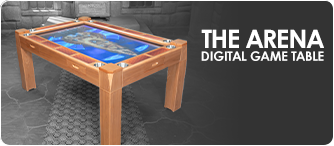
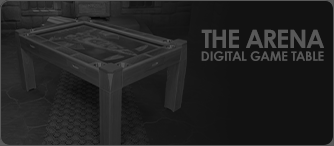
Summary: To update your Arena Digital Game Table, download the two Arena hardware upgrade kit files onto a compact USB flash drive. Insert the drive into the table's front port to install the system firmware, then use the System Assistant app to upgrade the remote software to Arena Version 2.
Before you begin the upgrade process for your home setup or gaming lounge, gather the necessary materials.
| Required Item | Details / Specifications |
|---|---|
| Arena hardware upgrade kit | The core kit prompted this update. |
| USB flash drive | Storage device to transfer update files (see Pro-Tip below). |
| Arena Digital Game Table | The physical table being upgraded. |
| Software Update Files | Two specific files provided via email or download link. |
When selecting your USB flash drive, use a slim, compact model. Because the USB ports are located in tight spaces on the front of the Arena Digital Game Table, inserting larger or bulkier USB drives can be difficult and may impede a secure connection.
What to Expect: The screen may go black briefly (the system is still running). A buffering circle will appear to indicate progress. After a couple of minutes, the system will restart and return to the home screen.
Troubleshooting Check: If you receive an error stating “file doesn’t exist,” it indicates a file or USB issue. Reformat the USB flash drive, re-download the files, and repeat Step 1.
With the main system updated, you must now sync the remote to the new firmware.
pack_MCU_AL0T3588.bin. (If the file downloaded properly in Step 1, it will appear here).After the final reboot, test the primary hardware integrations to ensure optimal performance.
| Function | Testing Method | Expected Outcome |
|---|---|---|
| Fan Control | Press the fan button (fan icon) on the remote. | The internal fans should activate/deactivate. |
| Touch Screen | Tap near the IR reader underneath the table. | The touch screen should successfully toggle on and off. |
| Power Button | Press the power button on the remote. | The system should successfully power down and boot back up. |
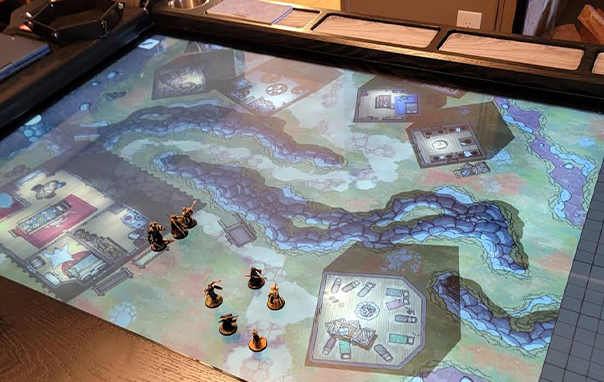
Once all three functions are confirmed operational, your Arena Version 2 update is officially complete!
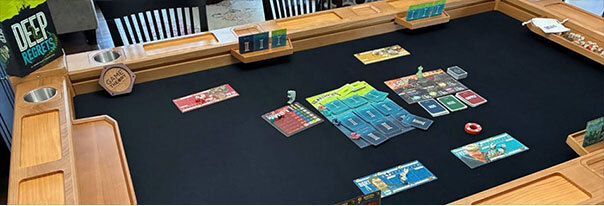
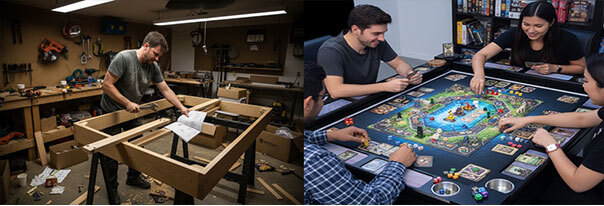
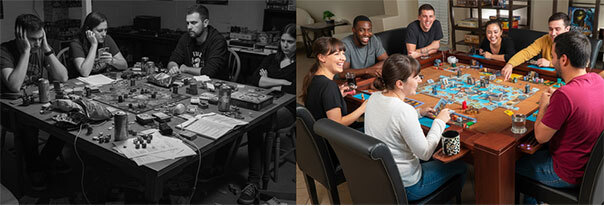
Upgrading your Arena Digital Game Table ensures you benefit from the latest firmware improvements, feature enhancements, and compatibility upgrades. It’s part of what makes Arena one of the most advanced board game table solutions available for modern gamers. Whether you’re playing in your home game room or running a dedicated gaming café, keeping your digital setup updated ensures a seamless and immersive experience for all. If you run into any issues, our support team at Game Theory Tables is just a click away.
Looking to expand your setup or learn more about game tables? Explore these resources:
Q: What should I do if my screen goes black during the firmware update?
A: Don't worry—this is expected behavior. The screen goes black briefly while the system runs, followed by a buffering circle before it restarts.
Q: I received a "file doesn't exist" error. How do I fix this?
A: This means there is an issue with the file or the USB flash drive. Reformat your USB drive, re-download the two upgrade files, and try the installation again.
Q: Where is the touch screen toggle located?
A: You can toggle the touch screen on and off by tapping near the IR reader located underneath the Arena Digital Game Table.
Q: What specific file name should I look for when updating the remote software?
A: Under the MCU Online Upgrade menu, look for the file titled pack_MCU_AL0T3588.bin.
Follow us on:

 Proceed to Checkout